


[Playbook] Building Custom Reports in AccuAccount
Here’s the situation: Your financial institution manages documents and exceptions in AccuAccount, Alogent’s ECM solution that’s optimized for commercial lending. You’re a big fan of the system’s standard reports but believe that the Dynamic Reporting module could be beneficial. Where do you begin?
This article shares two “plays” for using Dynamic Reporting for AccuAccount.
Play #1: Use the Drag and Drop Builder
Dynamic Reporting for AccuAccount organizes data into a familiar, spreadsheet-like experience. Each column represents a data field that is specified from the screen’s left side. As data fields are added, rows update automatically based on the user’s selections. Filtering and grouping is also straightforward.
Here’s the Game Plan
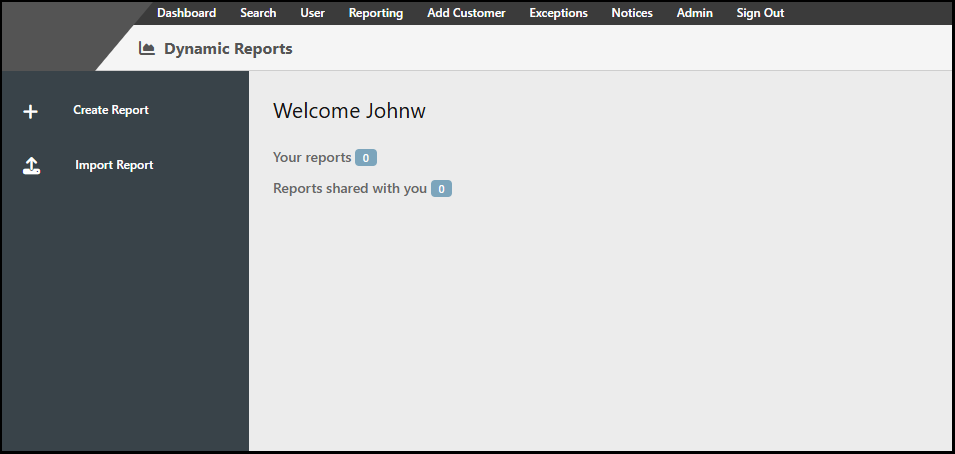
Step 1: After being granted access, navigate to the Dynamic Reporting section in AccuAccount and click “Create Report.” Since this is your first time using Dynamic Reporting for AccuAccount, “Your Reports” will probably be empty.
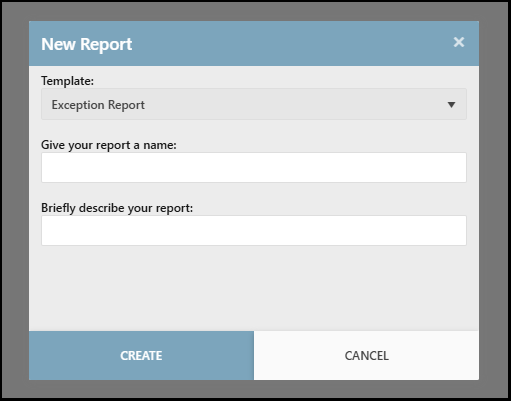
Step 2: You’ll be prompted to select a “Template,” which influences the data that is available in your report. Templates include:
- Customer report
- Deposit report
- Document audit history
- Document report
- Exception report
- Loan application report
- Loan report
- System logs report
- User report
In this example, we’ll select “Exception Report.”
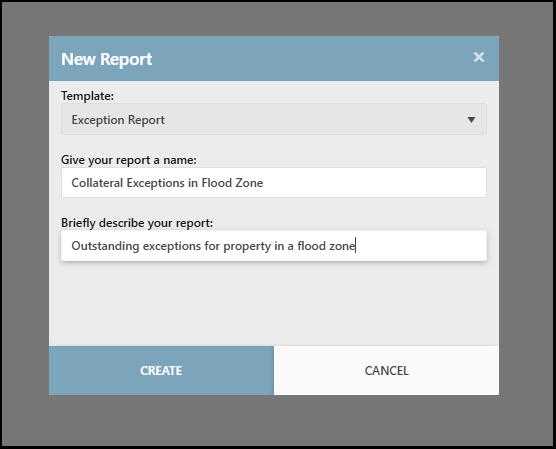
Step 3: Give your report a name, add a description, then click “Create.”
Step 4: Now you’re ready to add data fields. Choose from dozens of data field options in the left menu. For starters, we’ve selected the customer’s name, associated loan officer, and exception type.
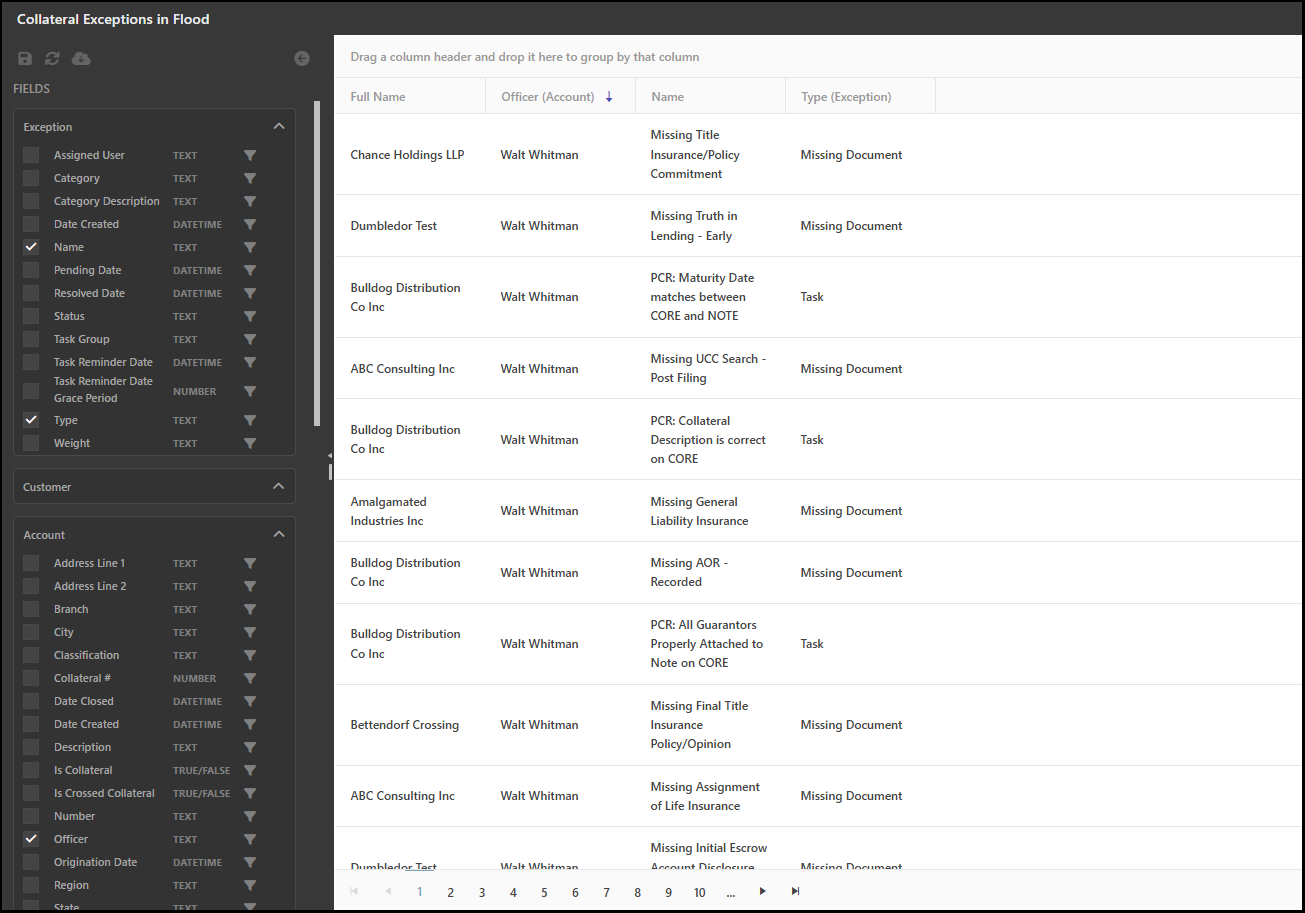
Looking to add data from other systems like your core or flood zone determination system? Syncing data into flex fields opens the door to richer insights—such as which loan officers have exceptions for collaterals in flood zones.
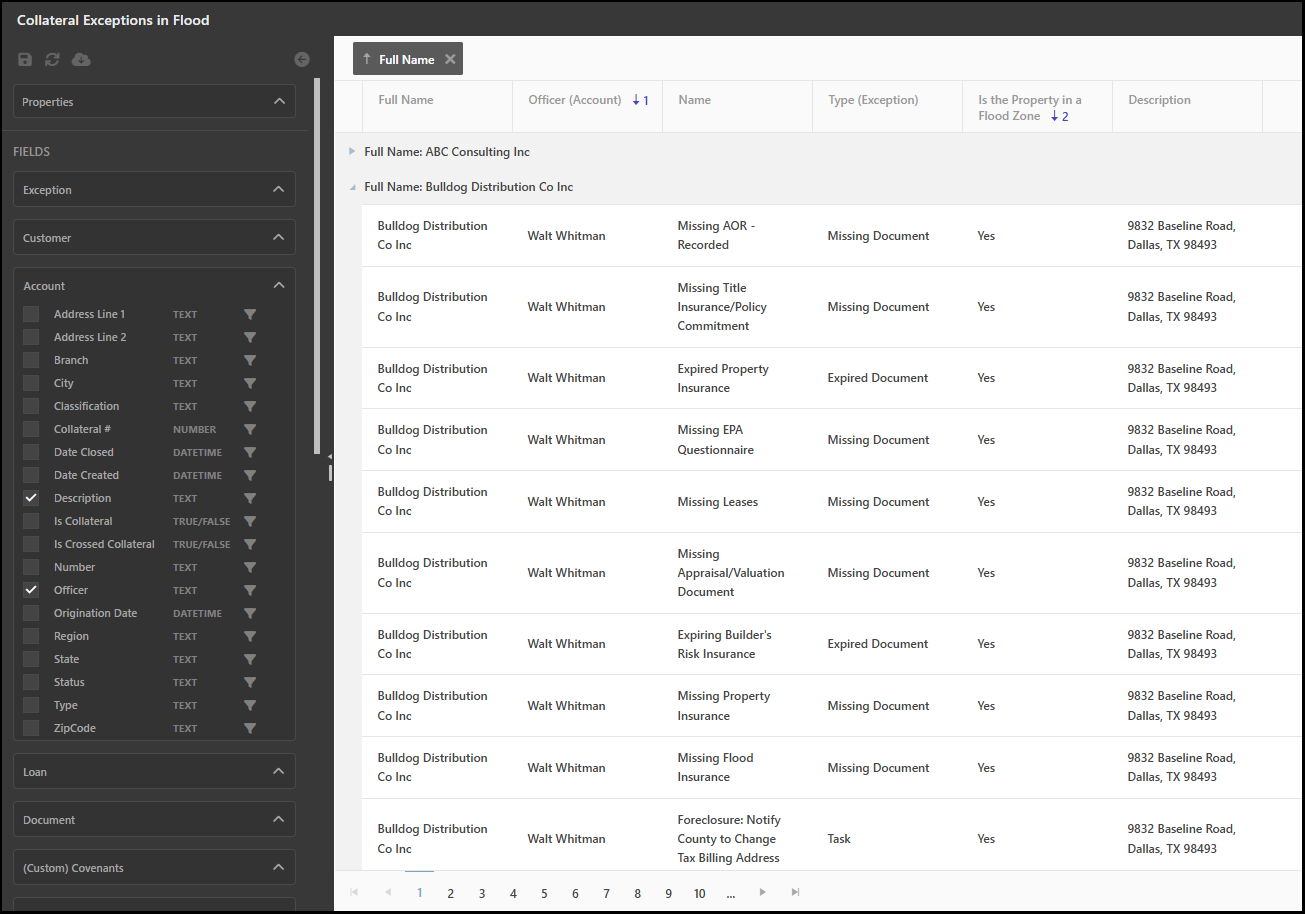
Step 5: Drag and drop to change column order and organize information based on your reporting needs.
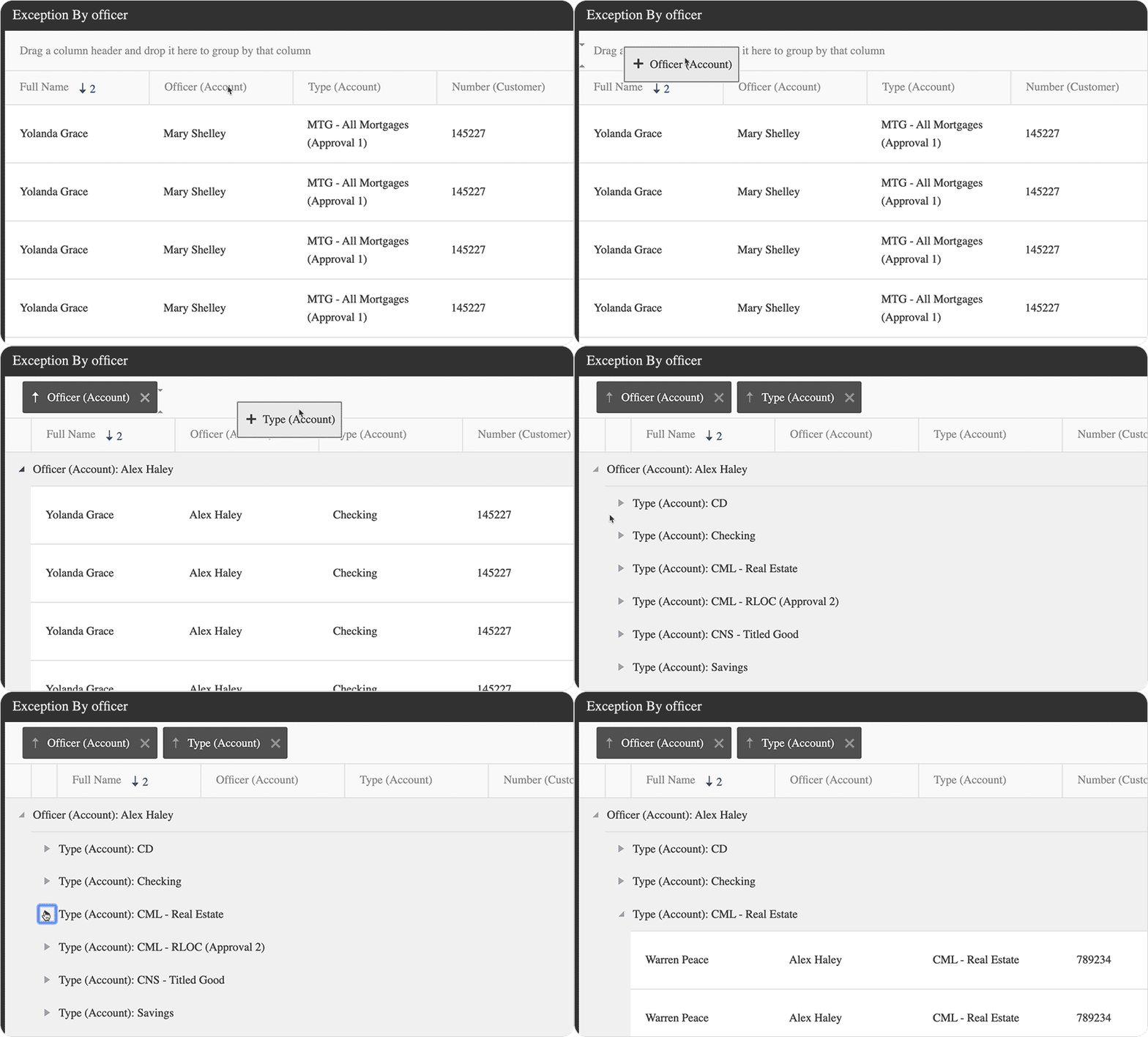
Sharing reports with colleagues, copying existing reports, and exporting data to CSV requires just a few clicks.
Play #2: Import Prebuilt Reports
Financial institutions can also upload prebuilt reports, which is a great option for users who are less technically inclined.
Here’s the Game Plan
Step 1: Reach out to Alogent’s support team or visit the knowledgebase to explore available prebuilt reports. Save the file(s) to your computer.
Step 2: Navigate to the Dynamic Reporting interface, select “Import Report,” and follow the prompts.
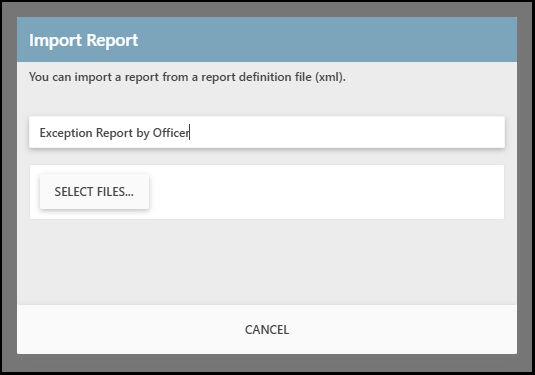
Step 3: After the report loads, you’ll be able to view, modify, copy, share, and export as needed.
Dig Deeper into Your ECM Data
Interested in learning about Dynamic Reporting for AccuAccount? Contact us to schedule a demo or request pricing information.
Learn more about Dynamic Reporting in AccuAccount & download a brochure
Be the first to know! Click below to follow us on LinkedIn for news and content updates!